Google Productivity Pad

Wednesday, June 12, 2013

Initial Thoughts on WWDC


Well as we expected WWDC has brought some big changes for the iPad. Yesterday I was able to watch the first half of Apple's Keynote, then I had to go to class after which I immediately had to go to work for the rest of the afternoon. You can imagine how antsy I was all the rest of the day, since the part that I missed included the announcement of iOS 7.

Since then I have watched some more of the Keynote and read several other articles summarizing it. And I have to say that my first thoughts are that I am very excited, but then I always am after an Apple announcement. However I am also a little sad. Here are a couple of my thoughts.

Excitement
iOS 7 and OSX Maverick are really exciting. The improvements that they have made look fantastic and are bringing some functionality that a lot of us have been waiting for a long time.

Control Center
This is probably the one I am most excited about. To be able to access those essentials immediately from anywhere on the device. For those of us using bluetooth keyboard, or another bluetooth device frequently, this is great because you no longer will have to search for the bluetooth in the settings app. I wish they would let us choose what apps are available here but it doesn't look like that is coming yet.

Air Drop
I think this is really going to useful. It will be so much easier to use Air Drop between devices rather than having to email it or upload and download from Dropbox or iCloud. Especially if you have multiple Apple products in your home this will make it much easier. I really liked the dig at Samsung about bumping your phone as well.

Multitasking
So the new interface looks very nice for multitasking. I love the part where you swipe up to close out an app, none of this hold down for a second. I do wish they had announced a close all apps option though. But the best thing about this is the smart use of battery power to open apps when needed and not when they aren't needed. I am excited for that.

Notification Sync
This is something I am very pleased to see, but it really should have come with notification center last year. I get very tired of having multiple notifications that I have to clear everywhere (particularly in Calendar). This will be very nice.

Sorrow
There were a few things that made me sad, because the march of progress sometimes has to leave things behind.

Skeuomorphism 
Jony Ive is the king of design, and I love a lot of what he has done in iOS 7. It looks really beautiful from what Apple has shown us. But I am one of those who mourns the loss of the skeuomorphic design that Steve Jobs liked so much. But I'm sure I will get over fine, and I won't have to get over it completely, which leads to my next point...

Dropping the iPod Touch 4th gen
While I noted this might happen in my 5th gen post, I was really hoping that it wouldn't. However, I know that it is probably for the best, since it is unlikely that my little 8-gig touch with A4 processor could handle the update. I understand that it is better to drop devices than to have them become very buggy, which is what happened to the 2nd gen with iOS 4; it was just a bad deal. Of course this also means that everybody on the 3GS will also be dropped. Just because we understand does not mean we like it. Looks like I might be joining the jailbreak community.

Auto updating apps
I know some people, particularly the crowd at the Keynote were very excited about this, but I am not. There are many times when you might not want to update to the newest version of an app. For example I don't always update right away because I want to see if there is another release the next day to clear up bugs discovered by those who did update. Or if you are the type of person like me who might use an older device, say when iOS 9 is coming out in a couple years and the iPhone 4 is dropped, that won't be fun because all your apps will try to auto update to versions requiring the newest OS, that's going to make it pretty much useless. Here's hoping you can turn this feature off.

Let me know what your favorite things from the WWDC keynote are, leave a comment below or

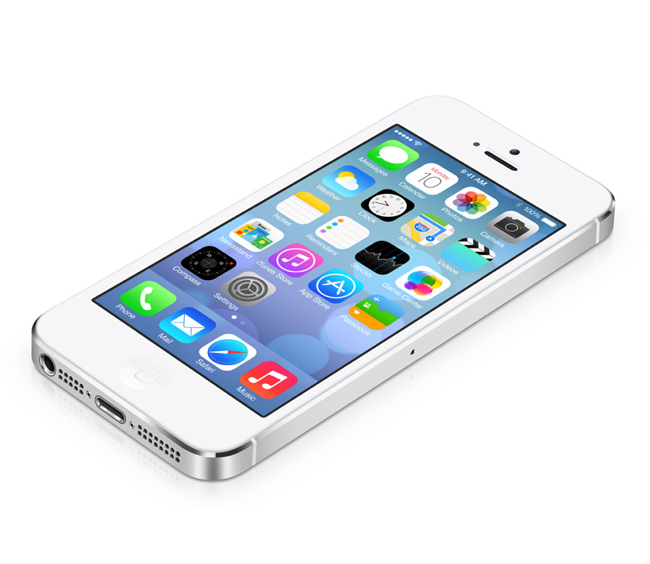
iOS 7 home screen

Those are just a few of my thoughts, I'm sure I will have many more as we approach and then actually recieve the release.

If you found this post helpful or interesting you can  it or use one of the buttons below to share.
Thanks for reading, and remember, live better


Thursday, June 6, 2013

Control-Z on an iPad

Control-z (command-z on a Mac) is one of my favorite things about the computer era. As most of you know, it is the computer command for undo last action. It makes it so it's like the last thing you did never happened, so if you make mistake you can just get rid of it. I make a lot of mistakes, probably more than you do, so I have long loved this whole concept; oft times I wish life had a control-z command.

As you know I have mostly gone all iPad, only using my computer at home. So here's the problem: just as it was with control-f, that there is no control or command key on an iPad. Oh the sorrow!

However, before you through your iPad into the dust bin, just yet let me tell you their is a way (albeit not quite as good) to duplicate this functionality on your iPad.

Warning: the iPad does punish you for making mistakes, this solution can make you look like a fool.

You have to shake your iPad

That's right, shake it. You make a mistake and all you have to do is shake your iPad, and it will go away.

Here's what happens; just click the undo typing (red box) and it will go away. This solution works in most apps that use text input. Quite frankly it is easier to do this on an iPhone or an iPod Touch where you may have already shaken your device in frustration anyway.  On the iPad it's a little more difficult and risky. It can be useful however, just not as useful as control-z.


Fortunately for us, many app developers know the value of the undo command and the have built undo functionality into their apps sans the shaking.  This normally comes in the form of a a little arrow looping backwards (orange arrow).


All the Evernote apps (Evernote, Penultimate, Skitch) have this functionality.  The Adobe Reader app, as well as others contain true undo functions. They also have redo arrows (yellow arrow) which mimics the less commonly used control-y command.

So there you have it, it is not perfect, but when you want to undo on your iPad the best option is to look for the undo arrow and if that is not available to you just shake it. I believe the shake command will work in almost every app.


If you find this post helpful you can  it or use one of the buttons below to share.
Thanks for reading, and remember, live better.


Wednesday, June 5, 2013

How to Make Tracks an Audiobook in iTunes

One of life's most frustrating experiences is when you are happily listening to your music on shuffle and all of the sudden out of your earbud someone starts talking. Then you dig your iPod or iPhone out of your pocket, double click the home button and hit skip; its annoying.

Chances are if this has happened to you its because you've downloaded an audiobook or a talk from a source other than iTunes. The music app simply sees the tracks as MP3s and plays them along with everything else, even if they are marked as the "Books & Spoken" genre, so it shuffles them in with all your songs.

Fortunately there is a simple way to fix this, its just hard to find at first. Normally I don't talk about using a computer directly here, but I only know of a fix for this via iTunes. If you know of a way to do it on iOS please .

I just recently got Jon Acuff's book Quitter as a free audiobook on NoiseTrade, so we will use that as an example.

Note that I am using iTunes 11 on a MacBook, but the process is identical on older versions of iTunes or on a PC.

First find all the tracks that belong in your audiobook, this is probably most easily done by typing the book title or author name into the iTunes search bar if you downloaded it from a source like NoiseTrade or Audible.  If you ripped it off a CD hopefully you named the album and author when you did so and it should also work, if not you will have to do some digging.

It should look something like this:


Highlight all the tracks in the audiobook (click on the top one, hold shift, click on the bottom one) then do a right click, and select "Get Info" (red arrow)


You will then be asked if you want to edit multiple tracks at one time, click yes (orange box).


You will see this menu, click on "Options" on the far right (yellow arrow)


It will look like this:


In order to change these tracks into an audio book you want it to look like this:


Change Media Kind to Audiobook, this will force the tracks to show up under the Books tab in iTunes
Say yes to part of compilation.
Say yes to remember position.
Say yes to skip when shuffling (Hurray!)

There you have it, your problem is solved.  Just sync your iPhone, iPod, or iPad with iTunes and you will be good to go. If you have any questions or comments please leave them in the comments section below.


If you find this post helpful you can  or if you think it can help others you can  it or use one of the buttons below to share.
Thanks for reading, and remember, live better.


Monday, June 3, 2013

Thoughts on the New iPod Touch 16-gig

Yesterday Apple quietly placed a new product on their website, a new model of the iPod Touch 5th gen. This one has 16-gig of space on it as opposed to the 32-gig which was the previous entry level on the 5th gen. Less storage allowed them to drop the price along with pulling out the rear facing camera and the loop lanyard. Apple also pulled the old 4th gen Touch from their product line, which it had still been offering as the entry level model.


What are my thoughts on the matter?

It's About Time:
Really the 4th gen is a great iPod and the one I still use, but it really should not be being sold new anymore. The technology is really pretty old now and it was time for it to go the way of all the older devices. I'm also happy when something like this happens because it drives down the prices of used electronics.

A Cheaper iPhone?
Many people seem to think that this signals that Apple will unveil a cheaper iPhone, but I disagree. Why? Because by doing this Apple has not made the iPod touch entry cheeper, it has made it more expensive. If by cheaper iPhone people are saying that Apple will release a lower quality iPhone than I definitely say no, what this shows is that if they release a lower cost iPhone it will be at the sacrifice of components.

That may sound like the same thing, but it isn't. Cheap quality is like a Samsung Galaxy where they make it out of plastic that will crack if you look at it sideways. Sacrificing components is what Apple has always done with the iPod touch. They've always lowered the price by saying were going to give you an older processor, or leave out the microphone, or leave off the camera, or offer less memory to give you a lower price. Which makes sense considering most people are buying these for kids.

So What Does This Mean?
Nobody can really say before WWDC but I think that Rob on Today In iOS, made a good guess when he said this may mean that iOS 7 will require the A5 processor that comes in the 5th gen iPod touch. While this would make me very sad because I would hate not to be able to update my iPod, it does seem like a likely explanation.

Another explanation could be that Apple is preparing to launch a new product, like an iWatch that would not be able to connect with a 4th gen bluetooth or processor, or that they are just going to limit it like they did Siri in which case they would need to stop offering products that wouldn't work with it.

It could also be that Apple was just running out of the 4th gen components and did not want to keep producing them when they could just lower the price point of the 5th gen. I think this is the most likely reason. The 4th gen has been around for a long time in terms of Apple products and as good as it is it was time for it to be picked off the Apple tree.

Well those are my thoughts. Let me know yours, .
I guess we'll find out more next week. Here's looking forward to WWDC.


Don't forget if you like this post you can  or  it or use one of the buttons below to share.
Thanks for reading, and remember, live better.

Thursday, May 30, 2013

Review: BYU App

While the app I review here is specific to BYU and is most useful to BYU students and faculty, it would also be very useful to a visitor to BYU for a camp or conference.

Name: BYU
Price: Free
Stars: 4
Type: Education, Information


Probably the best thing BYU's IT department has done over the course of my time at school has been to develop this app. The BYU website has always been cumbersome and annoying, the app is more than just a "go to website" type of app, but it does make many of the features of the website a lot more accessible.

This app does so much, and it is always having new features added. It was getting to the point that it had almost to much and you could not find what you wanted, but now they have added the feature to just choose what items you want to appear on your list when you open the app.

It does a lot so I will just go over the ones I have saved to my list here:

  • Library - this one gives younth option to search the library for books or materials, but more important than that it gives you instant access to study room reservations, before this it was a huge hassle to get to a study room reserved now it is relatively simple.
  •  Map My Classes - does exactly what it says, using your BYU ID it will find the location of all of your classes and show them to you on map. Great for the first day of the semester.
  • Campus Cameras - while a little creep, this app gives you access to BYU's time lapsed cameras in places you might want to check out lines, like the testing center, the bookstore, and Brigham's Square.
  • Calendars -- lets you access all of the university calendars you use to have to navigate through the website to do. This can let you see who is coming to speak at devotional, when the basketball team is playing, and what is playing at the HFAC.
  • Vending -- if you have ever showed up at the vending machine and been disappointed all the Fat Boy sandwiches were gone then this is for you, it lets you see where the vending machines are on campus, what they have in stock and how much they cost. Freshman dream come true.
  • My ID card -- I don't lose or forget my ID card, but I keep this option on my list just incase, the app can produce a digital version of your ID card that will allow you to enter the testing center, use your meal plan, and other ID relate activities.
  • GPA Calculator -- one of my absolute favorites, this function use to buried on BYU's website behind like a thousand pages, now it is right here on the app and I can "what if" to my heart's content.
Well I have barely scratched the surface of what is offered in this app. There are a lot more features to use depending on your campus needs. I highly recommend this app to anyone attending or visiting BYU.

If you find this post helpful you can  or if you know people at or coming to BYU you can  it or use one of the buttons below to share.
Thanks for reading, and remember, live better.

Wednesday, May 29, 2013

How to connect a bluetooth keyboard to an iPad

If you decide you want to go all iPad either completely or just for your mobile needs, there are many reasons you might need to use a bluetooth keyboard. Here are a few:

  • You may not like the lack of tactile feedback you get from the onscreen keyboard.
  • You may have too much typing to do to be comfortably handled by the onscreen keyboard.
  • You may want to be able to view the whole screen instead of having half of it covered up by the onscreen keyboard.
  • You may want to make use of arrow keys, media controls, number pad, or other key options not offered by the onscreen keyboard.
  • You may prefer to type in the dvorak lay out, an option only offered on the iPad via bluetooth keyboards. 
What ever your reason you may have encountered some trouble setting up your bluetooth keyboard because the instructions that come with them are often cryptic at best. Fortunately the process is actually quite simple.


1.Turn bluetooth on on your iPad from the settings page (red arrow)

2. Turn bluetooth on on your keyboard, generally you do this by switching on the power and then pressing a button with the bluetooth symbol on it.
3.The keyboard should start blinking an LED if it has one and then appear in the list of devices on your on your iPad screen. Simply tap it (orange arrow)


4. You will then receive a notification box on your iPad telling you to enter a pairing code on the keyboard. (yellow arrow) simply enter this via the number keys and press enter.


5. You are now paired if it says "Connected" next to the keyboard in the device list (green box)
There you have it your keyboard is now connected and ready to use.

Quick Tip: did you know you can also connect a bluetooth keyboard to your iPhone or iPod Touch? The process is the same as for an iPad.

If you find this post helpful you can  or if you think it can help others you can  it or use one of the buttons below to share.
Thanks for reading, and remember, live better.

Friday, May 24, 2013

Stop liking your bad self, and live better

I'd like to talk about something that is really important: IDENTITY. Each of us has an identity that is made up of every little bit about us, like strands of twine that make a rope. Just look at your ID(entity) card, preferably a driver's license like this one.

This card identifies you by physical description. And chances are you also build part of you personal identity on your physical description. For example I weave part of my identity out of being: a white person, a short person, a blue eyed person, a skinny person, a left-handed person, a male person, all based on my physical identity.

You probably also build your identity based on other common factors like religion, social/economic status, hometown, profession, family background and structure, etc. All those things you are asked on every survey you have ever taken. But you also base it on what you think about yourself and what others have identified about you.

The problem is that often something that is negative about us will be repeated over and over until we take that in and make it part of our identity, even though it really is not. And as soon as you make that little negative thread part of you identity cord you start to like it, even if you say you don't. So you say something like this: "Well I hate it, but I'm just a lazy person, that's just the way I am."

NO! That is not JUST THE WAY YOU ARE. But be honest, you like it, cuz you think it is part of you. If you are ever going to become better you have to get rid of this notion, whatever it is, that negative aspects are part of you. It is really hard to do this, because if you choose to give one up, especially one that you have believed is a part of you for a long time, it will hurt, it will hurt a lot. Like the man in The Great Divorce who rips the lizard off his shoulder it will feel as though a part of you has died, but the truth is a parasite eating off your soul has died, not you.

See, the problem with negative threads is that they disintegrate, because they are not part of you, when things get difficult they disappear and you are left with a frayed and nearly broken cord of identity that cannot support you.

So stop liking your bad self. If it is something that is holding you back than it is not really part of you.  Just like the dross was never part of the gold, but the gold thought it was. Believe me, when you come out on the other side you will still be you, just a better and purer form of you, and that is a good thing.


If you find this post helpful you can  or if you think it can help others you can  it or use one of the buttons below to share.
Thanks for reading, and remember, live better.